
An IP address conflict almost always shows up at the worst possible time. A laptop suddenly drops off the network mid-meeting. A printer stops responding for no obvious reason. Windows throws a warning about a duplicate IP address and nobody knows which device is the real problem
I have chased this exact problem more times than I can count, across home networks, small offices, and larger production environments, and the panic is always the same.
The good news is that once you understand how devices actually detect and report a conflict, tracking down the second device takes minutes instead of hours.
This guide walks through exactly how I diagnose an IP conflict in the field, using ARP, Wireshark, router logs, and a few habits that stop the problem from coming back.
What Actually Causes an IP Address Conflict
An IP conflict happens when two devices on the same network segment claim the same IP address at the same time. Since an IP address is supposed to uniquely identify a device on a subnet, both machines end up fighting for the same identity, and traffic meant for one often lands on the other instead.
There are three common causes I run into again and again. Someone manually assigns a static IP that already belongs to another device.
A DHCP scope overlaps with a range being used for static assignments. Or a device rejoins the network after being offline long enough that its old lease got reassigned to something else.
The First Sign: How Windows and Linux Report It
Windows is usually the loudest about this problem. You will see a system tray warning that says something close to “Windows has detected an IP address conflict” along with the conflicting address.
The affected device typically loses network connectivity entirely until the conflict clears or you manually renew the lease.
Linux and macOS are quieter about it. You may only notice packet loss, dropped SSH sessions, or intermittent connectivity, since these systems do not always throw the same visible alert.
This is exactly why relying on the operating system’s warning alone is not enough. You need to confirm the conflict at the network layer.
Step One: Use ARP to Reveal the Conflict
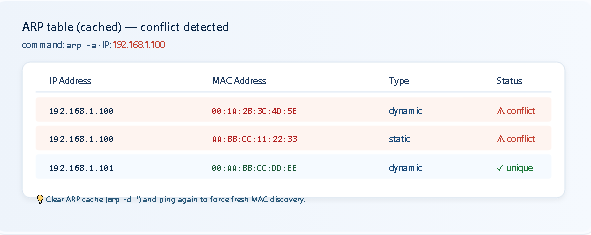
The Address Resolution Protocol maps IP addresses to physical MAC addresses on a local network, which makes it the fastest way to spot a duplicate.
When two devices share an IP address, the ARP table on nearby machines and switches often shows two different MAC addresses claiming the exact same IP, sometimes flipping back and forth as each device replies to ARP requests.
On Windows, open Command Prompt and run arp -a. This lists every IP to MAC mapping the machine currently has cached. On Linux and macOS, the same command arp -a works almost identically.
Look for the suspicious address and note its MAC. Then check that MAC against your device inventory, or physically trace it using your switch’s MAC address table if you manage a managed switch.
A trick I use constantly: clear the ARP cache first with arp -d * on Windows, then ping the suspicious IP and immediately run arp -a again.
This forces a fresh ARP request and often reveals the second device’s MAC address clearly, especially in cases where the cache was holding stale information.
Step Two: Confirm With Wireshark
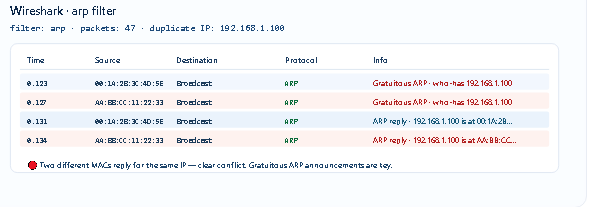
When ARP alone does not give a clear answer, especially on busier networks, I turn to Wireshark. Capturing traffic and filtering by arp shows every ARP request and reply moving across the segment in real time.
A true conflict usually shows two different MAC addresses answering ARP requests for the same IP, sometimes within the same second.
Gratuitous ARP packets are especially useful here. Many devices broadcast a gratuitous ARP announcement when they first join a network, claiming their IP address to every other device on the segment.
If you see two separate gratuitous ARP announcements claiming the same address from different MAC addresses, you have found your conflict with certainty.
I once used this exact method to solve a conflict that had been reported as random for weeks. Two IoT devices in a warehouse had been configured with the same static IP by two different vendors during installation, months apart.
A five minute Wireshark capture filtered by arp showed both devices announcing the identical address, and the fix took less time than the investigation.
Step Three: Check DHCP Versus Static Overlap
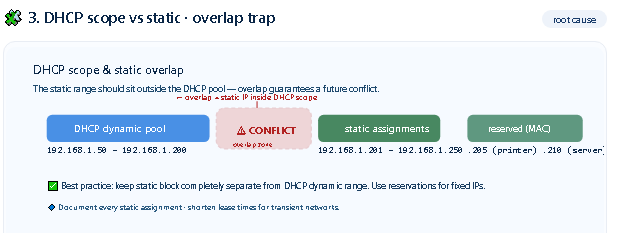
This is the single most common root cause I encounter, and it is entirely preventable. A DHCP scope is configured to hand out addresses across a range, but somewhere in that same range a device has been manually assigned a static IP. Eventually the DHCP server leases that exact address to a different device, and the conflict is guaranteed.
Always check your DHCP server’s active lease list against your static assignment records. Any static IP sitting inside an active DHCP scope is a conflict waiting to happen, even if it has not caused a problem yet.
Step Four: Read the Router or DHCP Server Logs
Most business grade routers and DHCP servers keep logs that record lease conflicts directly, often labeling them clearly as a duplicate address detected event along with a timestamp and the offending MAC address.
This is frequently the fastest path to an answer, since the router has already done the detection work for you.
On many consumer routers, this log lives under a diagnostics or system log section in the admin interface.
On enterprise DHCP servers, this typically appears in the event viewer or dedicated DHCP audit log, and it usually includes both the conflicting IP and a timestamp you can cross reference against your ARP or Wireshark findings.
Real Case Study: The Conflict That Only Happened at 9 AM
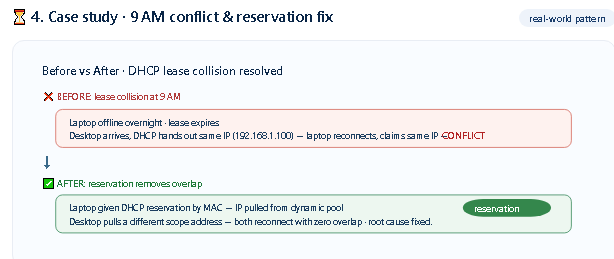
A client once reported a conflict that seemed to appear at almost the same time every morning. Investigating the router logs showed a duplicate address warning tied to a laptop that had been off overnight.
Its DHCP lease had expired while it was powered down, and by the time it reconnected each morning, that same address had already been leased to a new employee’s desktop that arrived earlier.
Before: Lease Collision at 9 AM Laptop offline overnight; lease expires Desktop arrives, and DHCP hands out same IP Laptop reconnects, claims the same IP: conflict After:
Fixed With Reservation: Laptop given a DHCP reservation by MAC. Desktop pulls a different scope address. Both devices reconnect with zero overlap. Root cause:
Short lease time plus an overnight offline device. Fix: reservation removed the address from the dynamic pool entirely
The fix was simple once the pattern was clear. I created a DHCP reservation tied to the laptop’s MAC address, which pulled that specific IP permanently out of the dynamic pool.
The lease time on the scope was also shortened slightly to reduce how long an unused address stayed claimed. The conflict never returned.
How to Design Scopes That Prevent Future Conflicts
Most conflicts I fix permanently rather than temporarily come down to better scope design from the start.
A few habits I follow on every network I manage: keep a dedicated static range completely separate from the DHCP dynamic pool, and never let the two overlap even by one address.
Reserve addresses by MAC for any device that genuinely needs a fixed IP, such as printers or servers, rather than configuring them manually on the device itself.
Document every static assignment in a central sheet the moment it is made, not weeks later.
Shorten DHCP lease times on networks with a lot of transient or mobile devices, since long leases hold addresses hostage even after a device has left the network.
Tools That Make This Investigation Faster
Once you have a MAC address from ARP or Wireshark, the next step is identifying which vendor or device it belongs to.
A MAC address lookup instantly tells you the manufacturer behind the first six characters of the address, which often narrows the suspect list down to one or two devices before you even walk over to check cables.
I use our MAC address lookup tool for exactly this during almost every conflict investigation, since guessing a vendor from memory wastes time you do not have during an outage.
Beyond that single lookup, having a full toolkit for IP planning matters just as much as fixing the immediate conflict.
I built the tools on SubnetLab specifically because I got tired of juggling separate calculators, lookup sites, and notes during late-night troubleshooting sessions.
Having everything in one place turns a stressful investigation into a five-minute task.
Why These Conflicts Are More Common Than People Assume
Most networks grow organically rather than by careful design. A router gets replaced, a new DHCP scope gets configured slightly differently than the old one, and a handful of static devices from years ago never get updated to match.
None of these individual changes look risky in isolation, yet together they create the exact overlap conditions that cause a conflict months or even years later.
I have also noticed conflicts spike whenever a company adds a large batch of new devices at once, such as a warehouse full of new scanners or a school lab full of new laptops.
Bulk provisioning often reuses a template configuration, and if that template contains even one static address, every device deployed from it ends up fighting over the same identity the moment more than one goes live.
Quick Conflict Troubleshooting Checklist
Confirm the conflict at the operating system level first. Run arp a on the affected machine to check for duplicate MAC mappings.
Clear the ARP cache and repeat the check for a fresh result. Open Wireshark and filter by arp if the source is still unclear. Check router or DHCP server logs for a duplicate address event with a timestamp. Compare the conflicting IP against your static assignment records and your DHCP scope range.
Apply a permanent fix, either a DHCP reservation or a corrected static assignment, rather than simply rebooting the device and hoping it resolves itself.
Frequently Asked Questions
How do I fix an IP address conflict on Windows quickly?
Release and renew the IP using ipconfig /release followed by ipconfig /renew, then confirm with arp -a that no other device is claiming the same address. If the conflict returns immediately, the root cause is on another device, not yours.
Can two devices have the same IP address on different subnets?
Yes, and this is completely normal. A conflict only occurs when two devices share the same IP on the same subnet or broadcast domain.
Does a VPN connection cause false IP conflict warnings?
Occasionally. Split tunnel VPN configurations can sometimes present overlapping address ranges between the local network and the remote network.
Some systems misreport as a conflict even though the two ranges never actually communicate directly.
Final Thoughts
An IP address conflict feels chaotic in the moment, but the diagnosis process is almost always the same three steps. Confirm it with ARP, verify it with Wireshark if needed, and check the logs your router or DHCP server has already recorded.
The permanent fix is rarely complicated either. Clean scope design, MAC-based reservations, and a habit of documenting static assignments prevent the vast majority of conflicts before they ever happen again.
Author Profile

-
Muhammad Kazim Ali – Owner & Principal Engineer at SubnetLab.com (real-world networking labs).
10+ years in routing, switching & infrastructure design. Helps students, pros & enterprises master networking via practical labs. Based in Lahore, works with ISPs, data centers & tech teams.
📞 +92 343 5201037 (WhatsApp) | ✉️ subnetlab.official@gmail.com | 🌐 subnetlab.com
Latest entries
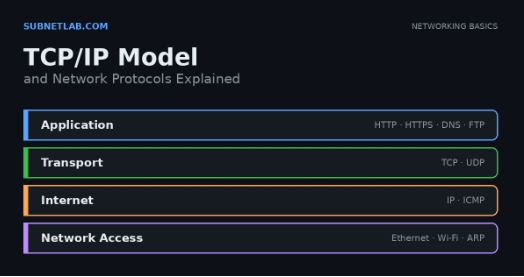 Network BlogAugust 25, 2026TCP/IP Model and Network Protocols Explained:TCP, UDP, ICMP, Handshakes, Flags, and Data Flow
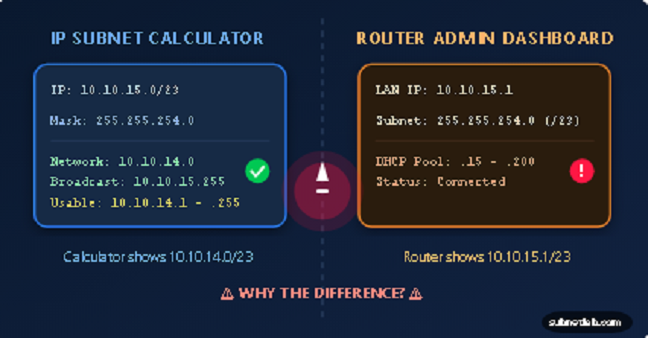 Network BlogAugust 11, 2026Router vs Calculator Showing Different Subnets? Why & the Fix
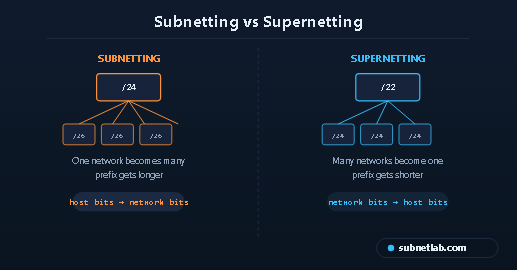 Network BlogAugust 6, 2026Supernetting Explained: The Opposite of Subnetting
 Network BlogAugust 5, 2026Ping Command Explained:Your First Tool for Network Troubleshooting