
Result for: google.com
auto‑fallbackEvery time you type a domain like subnetlab.com into your browser, DNS works behind the scenes. It translates that easy-to-remember name into a number, the IP address, so your computer can find the right server.
Our DNS lookup tool will help you a lot. Type any domain (or IP address) and quickly see results.
- Which IP addresses are attached (both old‑style IPv4 and new IPv6)
- Which mail servers handle email for that domain (MX records)
- Any text records used for security, domain verification, or email rules (SPF, DKIM)
- Who owns the IP address (company name and ASN number)
- Raw DNS data if you want to dig deeper
How Does a DNS Lookup Work? Like Asking for Directions
Let’s say you are in a new city and want to find a pizza shop called “Fine Pizza.” You don’t know where it is, so you ask a friend. If your friend doesn’t know, they ask another friend, and so on, until someone gives you the address.
Your computer does the same thing:
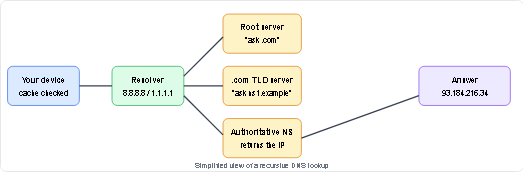
- It first looks in its own memory (cache). Has it visited Google.com before? If yes, it remembers the IP address.
- If not, it asks a DNS resolver. This resolver is usually run by your internet provider or by big companies like Google (8.8.8.8) or Cloudflare (1.1.1.1).
- The resolver asks around; it goes to the root servers, then to the .com servers, and finally to the server in charge of google.com. That server gives back the IP address.
- Your computer gets the IP address and can now load the website.
All of this usually finishes in well under a second.
What Kinds of Information Can a DNS Lookup Find?
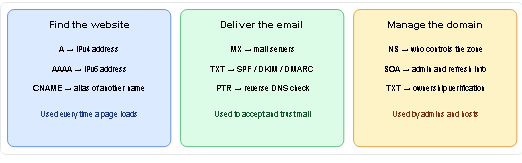
When you use a DNS lookup tool (like the one on subnetlab.com), you can see many different types of “records.” Each record tells you something different about a domain.
| Record Type | What It Does | Example |
|---|---|---|
| A | Gives the IPv4 address | 93.184.216.34 |
| AAAA | Gives the IPv6 address | 2606:2800:220:1:248:1893:25c8:1946 |
| MX | Tells you which servers are responsible for handling email for that domain | mail.example.com |
| NS | Shows which name servers are in charge of that domain | ns1.example.com |
| TXT | Holds text, often used to prove you own a domain or set up email rules | v=spf1 include:_spf.google.com ~all |
| CNAME | Makes one domain an alias of another (like a nickname) | www.example.com → example.com |
| SOA | Contains admin information, like who is in charge and how often the data refreshes | admin.example.com |
| PTR | The reverse of A – resolves an IP address back to a domain name | one.one.one.one |
Don’t worry if you don’t understand all of them—the most important ones are A (for normal web browsing) and MX (for email).
How to Use the DNS Lookup Tool (Step by Step)
- Enter a domain such as example.com or an IP address in the input box.
- Choose the record type you need (A, AAAA, MX, NS, TXT, CNAME, SOA or PTR), or pick “All” to see everything at once.
- Select the DNS resolver: Google (8.8.8.8), Cloudflare (1.1.1.1) or your default one.
- Click Lookup and read the results table. The TTL column tells you how long the answer may stay cached.
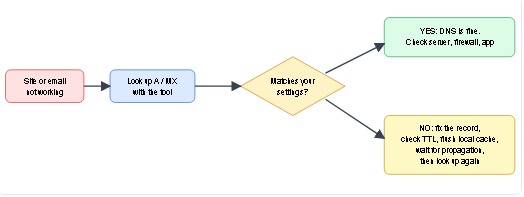
- Compare the result with what you configured at your registrar or hosting panel. If they differ, the change has not propagated yet or a record was saved incorrectly.
A Worked Example: Reading the Results for example.com
Suppose you look up example.com The A record returns 93.184.216.34 , so that is the server that answers web requests. The AAAA record returns an IPv6 address, which means the site is also reachable over IPv6.
The NS records list the name servers that hold the official records. If you then run the same query for MX and get no answer, you know the domain is not set up to receive email, which is normal for a test domain but a serious problem for a business.
Reading records this way, one type at a time, is the fastest method to locate where a problem starts.
Why Would You Use an Online DNS Lookup Tool?
You might think, “Can’t I just use the command line on my computer?” You can! But many people find typing commands scary. An online tool like subnetlab.com’s DNS lookup is much easier:
- No need to remember commands like “dig” or “nslookup.“
- You see results in clear tables, not just raw text.
- It can also show you who owns an IP address (like which company).
- You can click links to check if an IP is on a blacklist (bad reputation list).
- It works on any device, phone, tablet, or laptop, as long as you have a browser.
In short, it does the repetitive work for you, so you only need to read the answer.
Command-line equivalents (to double-check any result)
If you prefer the terminal, the same data is available with these commands. Running both is a good way to confirm the tool’s output.
| Task | Linux / macOS | Windows |
|---|---|---|
| A record | dig example.com A
|
nslookup-type=A example.com
|
| MX record |
dig example.com MX
|
nslookup-type=MX example.com
|
| Use Google DNS | dig@8.8.8.8 example.com
|
nslookup example.com 8.8.8.8
|
| Reverse (PTR) | dig-x 1.1.1.1
|
nslookup 1.1.1.1 |
When Would You Ever Need to Check DNS?
Here are some everyday situations where a DNS lookup tool saves the day:
1. Your Website Is Down for You but Works for Others
Maybe your computer has an outdated or incorrect IP address stuck in its memory. Use the DNS lookup tool to see what the real IP address should be. If they don’t match, you know it’s a DNS problem.
2. You Can’t Send or Receive Emails
Emails rely on MX records. If those are wrong, your messages have nowhere to go. The DNS lookup tool shows you exactly which mail servers are listed for your domain.
3. You Just Moved Your Website to a New Host
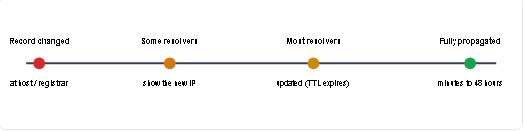
After changing your domain’s IP address, it can take a few hours for the whole world to see the change. The DNS lookup tool lets you check if the new IP is already showing up.
4. You Want to See Who Owns an IP Address
Enter an IP address, choose the PTR record, and the tool tries to find the domain name linked to it. This is called “reverse DNS.”
Understanding TTL and DNS Propagation
Every DNS record carries a TTL (Time To Live) value in seconds. A TTL of 3600 means resolvers may keep the answer for one hour before asking again. This is why a change is not instant everywhere: one resolver may already show the new IP while another still serves the old one until its cache expires.
Practical tip: before a planned migration, lower the TTL to 300 seconds a day in advance. After the move is confirmed, raise it again to reduce query load.
Email Records Explained: MX, SPF, DKIM and DMARC
Email problems are the most common reason people check DNS. Four records work together:
- MX decides where incoming mail is delivered. Lower priority numbers are tried first.
- SPF (a TXT record starting with v=spf1
- lists the servers allowed to send mail for your domain. A domain should have only one SPF record.
- DKIM publishes a public key (usually at selector._domainkey.yourdomain.com) so receivers can verify that a message was signed by you.
- DMARC (TXT at_dmarc.yourdomain.com) tells receivers what to do when SPF or DKIM checks fail.
Missing or duplicated SPF/DKIM records are a frequent cause of messages landing in spam. A quick TXT lookup shows whether they exist.
Common Mistakes People Make (And How to Avoid Them)
- Forgetting that changes take time. If you update a DNS record, be patient. Most internet computers remember old information for up to a day. That’s called TTL (Time To Live).
- Mixing up CNAME with A records. A CNAME is like a forwarding address. You can’t put a CNAME on the main domain (like example.com) if you also need MX or TXT records there. It breaks things.
- Typing the domain wrong. Always double-check the spelling. A single missing letter returns a completely different result.
- Using the wrong DNS server. Sometimes your internet provider’s DNS is slow or blocks certain sites. You can tell the tool to use Google DNS or Cloudflare DNS instead.
- Editing records in the wrong place. Records are managed where your name servers (NS) point, which may be your host or a service like Cloudflare, not always your registrar.
Limitations You Should Know About
A DNS lookup shows what public DNS servers return at the moment of the query. It cannot show your private or internal (split-horizon) DNS records, and results can differ slightly between resolvers because of caching or geo-based routing. Owner and ASN information comes from public registry data and may not always reflect the actual person using the IP. A lookup is a diagnostic aid, not proof of a domain’s legitimacy or safety.
Privacy and Data Handling
The domains you search are used only to run the query. DNS records are public information by design, so the tool only reads what any resolver would already return. Please do not enter passwords, API keys or private information in the search box.
How subnetlab.com’s DNS Lookup Tool Helps You
At subnetlab.com, we already help you with subnetting, IP planning, and CIDR calculations. A DNS lookup tool fits alongside them because:
- You can verify that the IP addresses you planned for your subnets actually work with your domain names.
- You can check reverse DNS (PTR) for each IP address in your block—important for mail servers.
- You can see all records at once—A, AAAA, MX, TXT, NS, SOA – in one place.
Together, the subnet calculators and the DNS tool cover both the planning side and the verification side of network and domain management.
About This Tool and How We Keep It Accurate
SubnetLab is built for students, sysadmins and website owners who need quick, reliable network utilities. The DNS lookup tool queries public DNS resolvers live, so results are not stored or pre-generated. We review the tool and this guide regularly, test lookups against dig
output, and update the article when record types, resolvers, or best practices change. If you find an error or want a feature added, contact us at subnetlab.official@gmail.com
FAQs
1. What is the difference between a domain name and an IP address?
A domain name is the easy‑to‑remember name (like subnetlab.com). An IP address is the hard‑to‑remember number that computers actually use to find each other.
2. Why do I sometimes see different IP addresses for the same website?
Big websites like Google have many computers all over the world. They give you the IP address of the closest one – that way, the website loads faster.
3. How long does it take for a DNS change to work everywhere?
Usually between a few minutes and 48 hours. It depends on how long each internet provider’s computer remembers the old information (the TTL).
4. Is DNS lookup free?
Yes! The tool on subnetlab.com is completely free. It uses public DNS APIs that are also free.
5. What does “CORS error” mean?
It’s a technical problem that sometimes happens if you save the HTML file and open it directly. The easy fix is to run a simple local web server (like python -m http.server 8000). The tool shows you how.
6. Can I use the DNS lookup tool on my phone?
Absolutely. It works on any device with a modern web browser—phone, tablet, or computer.
7. Why does my lookup show different results than a friend’s?
Different resolvers cache at different times, and some services return location-based answers. Query the same resolver (for example 8.8.8.8) on both sides to compare fairly.
8. Does a DNS lookup tell me if a website is safe?
No. It shows technical records only. Use a separate reputation or security scanner to judge safety.
Related Tools on subnetlab.com
- IPv4 Subnet Calculator – Plan your network addresses.
- CIDR to IP Range – Turn /24 into a list of IPs.
- DNS Lookup Tool – The tool you just read about.