
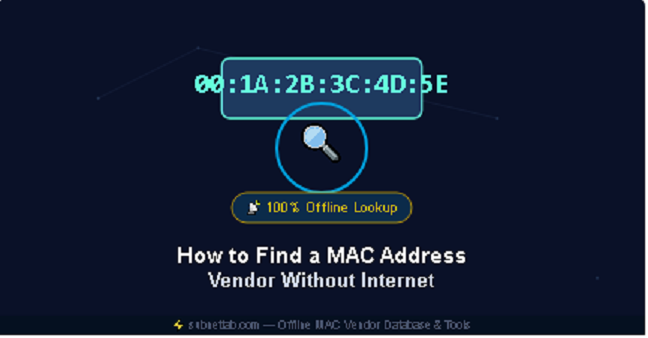
Every device that connects to a network, whether it’s a laptop, a smart TV, a printer, or an unfamiliar gadget that just joined your Wi-Fi, carries a built-in identifier called a MAC address. Most of the time, identifying who made that device means typing the address into an online lookup tool.
But what happens when you’re troubleshooting on an air-gapped network, sitting on a plane, working in a secure facility with no outbound connection, or simply dealing with a flaky internet connection at the worst possible moment?
You can still find the MAC address vendor without touching the internet. The vendor information is programmed directly inside the address itself, and there are several reliable offline methods, ranging from operating system commands you already have installed to downloadable IEEE databases you can query locally, that will get you the manufacturer name in seconds.
This guide walks through every practical offline method, explains the structure that makes offline lookup possible in the first place, and points out the situations where offline lookup simply won’t work, so you’re not left guessing.
What Makes Offline MAC Vendor Lookup Possible

A MAC address (Media Access Control address) is a 12-character hexadecimal identifier, usually written as six pairs separated by colons or hyphens, like 00:1A:2B:3C:4D:5E.
It is burned into the network interface card (NIC) at the time of manufacture, which is why it’s also called a hardware address or physical address.
The key fact that makes offline lookup possible is this: the address isn’t random. It’s split into two distinct halves, each with a different purpose.
The first half is the OUI, or Organizationally Unique Identifier. This is a 24-bit block (the first three byte pairs) that the IEEE Registration Authority assigns exclusively to one manufacturer. Apple, Cisco, Samsung, Dell, and every other hardware vendor purchase blocks of these identifiers and are the only ones permitted to use them.
The second half is the NIC-specific portion, a unique serial number the manufacturer assigns to each individual device. It tells you nothing about the vendor on its own; it just guarantees the full address is unique.
Because the OUI-to-vendor mapping is a fixed, publicly documented standard rather than something that needs a live database query, you can store the entire mapping table locally and look up any address against it without ever touching the internet.
This is the diagram that makes the rest of this guide click into place:
The diagram above shows exactly where the dividing line sits. Everything you need for a vendor match lives in those first three byte pairs.
Method 1: Use Built-In Operating System Commands

Every major operating system ships with networking utilities that can show you MAC addresses, and in some cases, the vendor name directly, without installing anything or connecting to a network.
On Windows
Open Command Prompt or PowerShell and run:
getmac /v
This returns the MAC address for every active network adapter along with a description of the adapter itself. For deeper detail, including the manufacturer in many cases, run:
ipconfig /all
Windows also maintains a local ARP cache that maps IP addresses to MAC addresses for devices it has recently communicated with.
Running arp a shows you those entries instantly, which is especially useful for identifying other devices on your local area network (LAN) without sending a single packet out to the internet.
On macOS
Open Terminal (found under Applications > Utilities) and run:
ifconfig en0
Look for the line labeled ether; that’s your MAC address. To see hardware details for every interface at once, including Wi-Fi and Ethernet, use:
networksetup -listallhardwareports
On Linux
Most distributions support:
ip link show
Or, if you prefer reading the raw interface files directly:
cat /sys/class/net/*/address
Both commands work without root privileges on most systems and return the MAC address for each network interface immediately.
The commands above only confirm the address itself. None of them tell you the vendor by name unless your OS happens to have a cached OUI table (Windows occasionally does, depending on version).
For the actual manufacturer name, you need to pair the address with an offline database, which is exactly what the next method covers.
Method 2: Download and Query the IEEE OUI Database Locally

This is the most reliable offline method because it uses the same authoritative source that every online MAC lookup tool, including the one on SubnetLab, ultimately pulls from.
The IEEE Standards Association publishes a free, public registry of every OUI assignment. It’s available as a plain text file (commonly named oui.txt or distributed in CSV format through IEEE’s public registry pages) and is small enough, only a few megabytes, to keep on a USB drive, a shared network folder, or directly on the machine you’re troubleshooting from.
Here’s the practical workflow:
- Download the file once, while you have internet access, from the IEEE’s public OUI registry.
- Store it locally anywhere accessible: your desktop, a flash drive, a shared drive on an isolated network.
- Search it manually or with a script. Since the file is just structured text, you can open it in any text editor and use Find (Ctrl+F) to search for the first six hex digits of the MAC address you’re investigating.
For example, if you’re checking 3C:5A:B4:11:22:33, you’d search the file for 3C-5A-B4 (the IEEE file typically uses hyphens). The matching line will show the registered company name right next to it.
If you do this often, a short script saves time. A one-line grep command on Linux or macOS does the job instantly:
grep -i “3C-5A-B4” oui.txt
This approach scales well. Network administrators managing inventory audits or device fingerprinting across hundreds of MAC addresses often load the OUI file into a spreadsheet or a small local database and run batch lookups, all without a single outbound connection.
Method 3: Use a Local App or Pre-Loaded Lookup Tool
If downloading and parsing a raw text file feels like more friction than you want, several lightweight desktop applications and browser-based tools bundle the OUI database directly into the install package. Once installed, they work entirely offline.
The advantage here is convenience: you get a clean interface, instant search, and often a “vendor → address range” reverse lookup (typing a company name to see every prefix it owns) without managing a flat text file yourself.
The tradeoff is that the bundled database is only as fresh as the last time the app was updated, since manufacturers occasionally register new OUI blocks. For most day-to-day troubleshooting this isn’t a real concern; OUI assignments rarely change once issued.
This is the kind of decision tree worth keeping in mind when you’re choosing between the three offline methods:
Each path lands at the same result, a vendor name, but they trade off setup effort against long-term convenience differently. Built-in OS commands need zero setup but only show cached or partial vendor data.
A downloaded OUI file needs a few minutes of one-time setup but is the most authoritative and current source. A bundled app needs an install step but gives you the friendliest day-to-day experience.
Side-by-Side: Where to Run Each Command
If you’re working across multiple machines or supporting a mixed environment, it helps to have the native command for each platform in one place.
Keep in mind that none of these three commands require an internet connection. They’re reading directly from your network interface driver or kernel, which already knows its own hardware address regardless of whether it can reach a router, let alone the wider internet.
Why Some MAC Addresses Can’t Be Matched to a Vendor

Not every MAC address will return a usable vendor name, and this has nothing to do with which lookup method you use. It comes down to a deliberate privacy feature built into modern devices called MAC address randomization.
Since iOS 14, Android 10, and recent Windows and macOS updates, devices generate a temporary, randomized MAC address for each new Wi-Fi network they join, rather than broadcasting their real, factory-assigned hardware address. This protects users from being tracked across locations by their device’s unique identifier. The catch is that a randomized address has no real vendor behind it; it was generated on the spot specifically to avoid identification.
The good news is you can usually tell the difference before you even attempt a lookup. The second hex digit of the first byte pair encodes a bit called the U/L bit (universal/local), and checking it takes one glance:
If that second digit is even (0, 2, 4, 6, 8, A, C, or E), the address is universally administered, meaning it’s the real, factory-burned address and a vendor lookup will work normally. If it’s odd (1, 3, 5, 7, 9, B, D, or F), the address is locally administered,
which almost always means it’s randomized, and no offline or online tool will return a meaningful manufacturer name for it. This isn’t a limitation of the lookup method; it’s the address intentionally not pointing to a real vendor.
This single check saves a lot of wasted searching. If you’re trying to identify an unknown device on your network and its address comes back as locally administered, the vendor lookup was never going to succeed, and the more useful next step is checking the device’s hostname, open ports, or DHCP lease information instead.
Practical Use Cases for Offline MAC Vendor Lookup

Understanding why offline lookup matters helps clarify when to reach for it:
Air-gapped or classified networks. Government, defense, financial, and industrial control environments frequently run networks with no internet egress at all, by design.
Network administrators in these environments rely entirely on local OUI databases for device fingerprinting and asset inventory.
Field troubleshooting with unreliable connectivity. Technicians working in basements, remote sites, or shielded server rooms often lose signal entirely. Having the OUI file cached locally means a connectivity problem doesn’t also become a diagnostic problem.
Security incident response. When investigating a potential rogue device or unauthorized access on a network, analysts often prefer not to send identifying information, like a MAC address tied to an internal asset, to a third-party web service at all, for confidentiality reasons. Offline lookup keeps the entire investigation contained.
Bulk audits. Anyone reconciling a large list of MAC addresses against an asset inventory benefits from scripting against a local file rather than making hundreds of individual web requests.
Frequently Asked Questions
Can I find a MAC address vendor without any internet connection at all?
Yes. As long as you have a local copy of the IEEE OUI database, downloaded ahead of time, or a tool that bundles one, you can match any standard, factory-assigned MAC address to its manufacturer with zero internet connectivity required at the time of lookup.
Why does my MAC address lookup return “unknown” or no result?
The most common reason is MAC address randomization. If the address has an odd second hex digit, it’s locally administered and was generated temporarily rather than assigned by a manufacturer, so there’s no real vendor to find.
A less common reason is that the OUI block is genuinely new and hasn’t made it into your local database copy yet.
Is the offline OUI database the same data online tools use?
Yes. Reputable online MAC lookup tools, including the one on SubnetLab, pull from the same IEEE registry that’s available for free public download.
There’s no special or more accurate data source; the offline file is the same data, just queried locally instead of through a live web request.
How often does the IEEE OUI database change?
New OUI blocks are registered regularly as manufacturers request them, but existing assignments essentially never change. Refreshing your local copy every few months is more than enough for almost any troubleshooting or auditing purpose.
Do built-in OS commands like ipconfig or ifconfig show the vendor name?
Sometimes, but not reliably. They reliably show you the MAC address itself. Vendor name display depends on whether your OS has a cached or bundled OUI reference, which varies by version and platform.
For a guaranteed vendor name, pairing the address with a downloaded OUI file is the dependable path.
Try It Online When You’re Back on the Grid
Offline methods are essential when you’re disconnected, but when you do have a connection, SubnetLab’s MAC Address Lookup tool checks the same IEEE OUI registry instantly, with no manual file searching required. It’s a convenient way to confirm results from a manual offline lookup or to do a quick reverse lookup by vendor name once you’re back online.
Related tools on SubnetLab:
- DNS Lookup Tool resolves domains and checks records
- Ping/Traceroute tests reachability and trace network paths
- Port Scanner checks open ports on a host or IP
Author Profile

-
Muhammad Kazim Ali – Owner & Principal Engineer at SubnetLab.com (real-world networking labs).
10+ years in routing, switching & infrastructure design. Helps students, pros & enterprises master networking via practical labs. Based in Lahore, works with ISPs, data centers & tech teams.
📞 +92 343 5201037 (WhatsApp) | ✉️ subnetlab.official@gmail.com | 🌐 subnetlab.com
Latest entries
 Network BlogAugust 25, 2026TCP/IP Model and Network Protocols Explained:TCP, UDP, ICMP, Handshakes, Flags, and Data Flow
 Network BlogAugust 11, 2026Router vs Calculator Showing Different Subnets? Why & the Fix
 Network BlogAugust 6, 2026Supernetting Explained: The Opposite of Subnetting
 Network BlogAugust 5, 2026Ping Command Explained:Your First Tool for Network Troubleshooting