
A 169.254 IP address means your device asked for a network address, got no answer, and gave itself one. The short version: DHCP failed. The good news is that most cases are fixed in under ten minutes, usually without touching the router.
What a 169.254 IP address means
An address that starts with 169.254 is called an APIPA address (Automatic Private IP Addressing). Windows, macOS, and Linux all use this fallback, defined in RFC 3927. The device picks a random address from the 169.254.0.0/16 range and checks that nobody else on the local network is using it.
Here is what that address tells you, and what it does not:
• It tells you DHCP failed. Your device normally gets its address, mask, and gateway from a DHCP server. Since that didn’t happen, it fell back to APIPA.
• It does not tell you the exact cause. The problem could be a loose cable, a full DHCP pool, or a switch port on the wrong VLAN.
• It cannot reach the internet. APIPA addresses have no default gateway, so traffic leaves your local network only if it is meant for a device on the same link.
Quick answer:
A 169.254.x.x address means your computer could not reach a DHCP server. Renew the lease, check the cable, and confirm the DHCP server is running.
How to confirm you have an APIPA address
Open Command Prompt and run:
ipconfig /all
Look at these lines:
• IPv4 Address: starts with 169.254
• Default Gateway: blank
• DHCP Server: missing, or shows an address that doesn’t make sense
If all three match, you are looking at an APIPA problem. If the address is normal but you still have no internet, the issue is different. See the section on that below.
Why DHCP fails
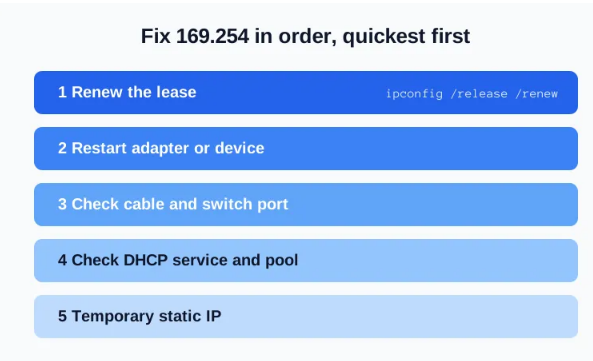
Most cases come down to one of these five causes. Work through them roughly in this order, because the first two are the fastest to check.
1. A physical or Wi-Fi link problem
A loose cable, a damaged port, or a Wi-Fi connection that is still connecting can stop DHCP requests from reaching the server. On a laptop, try a different Wi-Fi network or plug into a cable for a moment. If the 169.254 address goes away, you have found the cause.
2. The DHCP server is down
On a home network, the router usually runs DHCP. In an office, it may be a Windows Server, a firewall, or a dedicated appliance. If the DHCP service has stopped, nobody is handing out addresses.
3. The DHCP pool is full
Every DHCP scope has a limited number of addresses. If 50 devices are leased from a pool of 50 addresses, device number 51 gets APIPA. This happens a lot in guest networks and conference rooms, and it often shows up on Monday mornings when devices reconnect.
4. The switch port is on the wrong VLAN
On managed switches, a port assigned to the wrong VLAN cannot see the DHCP server, which may live on a different VLAN. The device sends its request, nothing answers, and APIPA takes over. This is a common problem after someone moves a cable or changes a port profile.
5. A conflicting or rogue DHCP server
A second router that someone plugged in (often a home router used as an access point with DHCP still turned on) can hand out conflicting addresses. Depending on timing, some devices get the wrong gateway or nothing at all.
How to fix a 169.254 address step by step
Start with the quickest fix and move down the list only if the previous step didn’t work.
Step 1: Renew the DHCP lease
Open Command Prompt as administrator and run:
ipconfig /release
ipconfig /renew
Wait about 10 seconds. Then run ipconfig again. If you now have a normal address, the device simply missed the first DHCP response. Many people stop here, and it works.
Step 2: Restart the adapter or the device
If renewing didn’t work, disable and re-enable the adapter from Network Settings or restart the PC. On Linux, you can run:
sudo dhclient -r
sudo dhclient
On systems using NetworkManager, nmcli or the network GUI does the same job.
Step 3: Check the physical connection
Try another cable, another port on the switch, or move closer to the Wi-Fi access point. If the problem follows the device, the cable or adapter is likely the cause. If it stays on one port, the port or its VLAN is the suspect.
Step 4: Check the DHCP server
Log in to the router or DHCP server and check two things:
1. Is the DHCP service running?
2. Does the address pool have free addresses?
If the pool is full, you can extend the range or shorten the lease time, which frees old addresses sooner. For a home router, a restart often clears stale leases.
Step 5: Set a static IP as a temporary workaround
If the DHCP server is out of reach right now, set a static address so the device can work while you fix the server. The address must belong to your subnet, sit outside the DHCP pool, and not be in use by another device.
Here is a worked example. Say your router is 192.168.1.1 with a /24 mask (255.255.255.0), and your DHCP pool runs from 192.168.1.100 to 192.168.1.200.
• IP address: 192.168.1.50
• Subnet mask: 255.255.255.0
• Default gateway: 192.168.1.1
• DNS: 192.168.1.1 or a public resolver such as 1.1.1.1
If you are unsure whether an address fits your subnet, run the numbers through our subnet calculator. It shows the network range in seconds, so you can check that .50 really sits where you think it does.
Remember to switch back to automatic (DHCP) once the server is fixed. A forgotten static address causes its own problems later.
I have a normal IP address but still no internet
Getting a proper address does not guarantee access. If you see something like 192.168.1.42 and websites won’t load, the problem has moved up the stack.
Try these checks in order:
• Ping your gateway: ping 192.168.1.1 If this fails, the local link is still broken.
• Ping a public IP: ping 8.8.8.8 If this works but names don’t resolve, the issue is DNS.
• Look up a name: nslookup google.com If this fails, change DNS to a known resolver and test again.
Our guides on the ping command and why ping works but websites won’t open walk through each of these checks with example output.
How to stop it from coming back
A one-time fix is nice. A permanent fix is better. A few habits help:
• Reserve addresses for servers and printers. Use DHCP reservations so these devices always get the same address, and keep them out of the general pool.
• Size your pool for peak load. If your network has 80 devices but the pool only holds 60, you will hit this problem again.
• Document your VLANs and port assignments. Most VLAN-related APIPA cases happen because nobody wrote down which port belongs where.
• Keep one DHCP server active. Turn off DHCP on any second router you add for Wi-Fi coverage.
Frequently asked questions
Is a 169.254 IP address a virus?
No. It is a normal fallback that Windows and other operating systems use when DHCP fails. Malware is not required to cause it.
Why does my IP change to 169.254 every time I restart?
Your device probably can’t reach the DHCP server at boot, which can happen if the network card loads before the switch or Wi-Fi link is ready. Check whether the same device gets an address after a short wait, and look at power settings on the adapter. Some laptops power down the Wi-Fi card to save energy.
Can two devices with 169.254 addresses talk to each other?
Yes, if they are on the same local link and their addresses are in the same 169.254.0.0/16 range. They cannot reach devices on other subnets or the internet.
Should I set a static IP permanently?
Only for devices that need a fixed address, such as servers or network printers. For laptops and phones, DHCP is the better choice because it adjusts automatically when the network changes.
Does a 169.254 address mean my network card is broken?
Usually not. A broken card would more often show no connection at all. Test the cable, the port, and the DHCP server before replacing hardware.
Related Blog
ping works but websites wont open
Final thoughts
A 169.254 address looks alarming, but it is just a sign that DHCP didn’t respond. Most of the time, a lease renew or a cable swap sorts it out. When it keeps coming back, the cause is almost always in the DHCP pool or the switch port, and those are both quick to check once you know where to look.
Author Profile

-
Muhammad Kazim Ali is a network engineer and technical writer at SubnetLab, where he writes about how computer networks work and how to make sense of them. Most of his work centers on IP addressing and subnetting, the topics that tend to trip people up first, but he also covers CIDR, IPv6, TCP/IP, DNS, and the protocols that connect them. Much of it is written for students who are just starting out and for IT professionals who need a refresher without wading through dense theory.
His approach is simple: explain the idea plainly, work through an example, and then show why it matters on a real network. The courses, guides, and reference material on SubnetLab follow that same pattern, with a practical focus on troubleshooting when things go wrong.
Whether you are learning subnetting for the first time or sharpening your skills on the job, his articles are written to be read, tested against a real network, and returned to when needed.
Latest entries
- November 23, 2026IPv4 Tools169.254 IP Address on Windows? Causes and Fixes That Work
- August 25, 2026Network BlogTCP/IP Model and Network Protocols Explained:TCP, UDP, ICMP, Handshakes, Flags, and Data Flow
- August 11, 2026Network BlogRouter vs Calculator Showing Different Subnets? Why & the Fix
- August 6, 2026Network BlogSupernetting Explained: The Opposite of Subnetting