
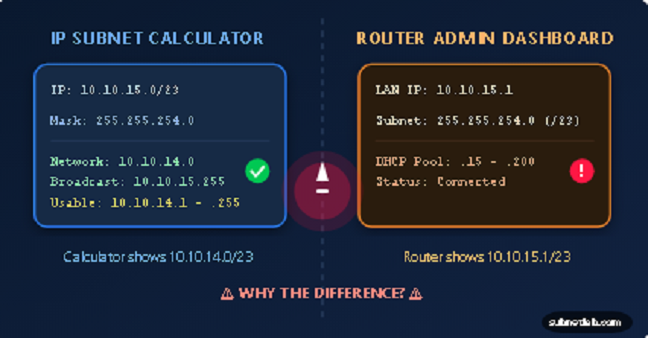
Simply type the 10.10.15.0/23 IP address into the subnet calculator tool. It spits out a network range of 10.10.14.0 – 10.10.15.255. Check your router’s admin page, and it shows something completely different.
Recheck the numbers. You try a second calculator; same result.
Don’t panic. Your calculator tool is working, and your router is not lying. This is actually one of the most common problems that networking students and IT pros face in daily life. The confusion happens because subnet calculators and routers describe your network from two different angles.
In this guide, we will try to cover this topic from a technical point of view & give you real-world examples of how it happens, how to troubleshoot it like a professional, and how to prevent it from happening next time.
Part 1: What You Are Actually Looking At
Before we fix anything, let’s clarify what these two tools are telling you.
Your Subnet Calculator shows you the math:
- Network Address: The official starting point of the subnet.
- Broadcast Address: The official endpoint (used to send data to all devices on the subnet).
- Usable Host Range: Actual IPs you can give to computers, phones, and printers.
Your Router shows you the real-world setup:
- Its own interface IP and mask.
- DHCP range (the pool of IPs it hands out).
- Routing tables and WAN (internet) settings.
The difference happens when you compare an apple to an orange (the router’s specific configuration). Let’s look at the 6 most common reasons these numbers don’t match.
Part 2: 6 Most Common Reasons for the Mismatch
1. Your Starting IP Isn’t “Aligned” for the Subnet Size (The #1 Reason)
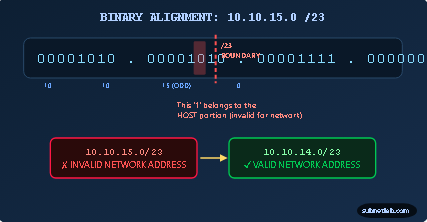
This is the #1 reason beginners get confused. Let’s look at that classic 10.10.15.0/23 example.
If you choose /23, the subnet mask is 255.255.254.0. This means the network boundary falls inside the third octet. With a /23, the third octet must always be an even number (0, 2, 4, 6, 14, 16…).
Why? Because 15 is odd. The 1 at the end of 15 (binary 00001111) is actually part of the host portion, not the network portion.
The Rule of Thumb:
- /24 → Third octet can be anything (0-255).
- /23 → Third octet must be even.
- /22 → Third octet must be divisible by 4.
- /21 → Third octet must be divisible by 8.
The Fix:
If your calculator is “correcting” 10.10.15.0 to 10.10.14.0, it’s not a bug. It’s just telling you the actual block that 15 belongs to. Start your planning with 10.10.14.0/23 as an alternative.
2. You Are Looking at the Wrong Side of the Router (WAN vs LAN)
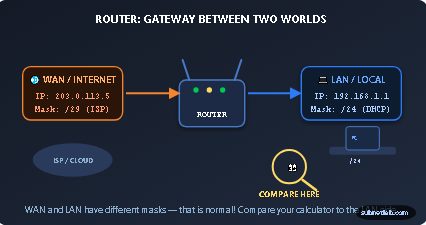
A router is basically a gateway between two worlds: the Internet (WAN) and your Local Network (LAN).
Your internet service provider (ISP) might give your router a WAN IP with a /29 mask. Meanwhile, your computer is sitting on the LAN with a /24 mask.
If you log into your router and casually look at the “Internet Status” page, you’ll see the WAN mask. If you open ipconfig on your PC, you’ll see the LAN mask. They are supposed to be different!
The Fix:
When using your subnet calculator, you must compare it against your router’s LAN Settings (label):
- “Local Network”
- “DHCP Server”
- Not the WAN/Internet status page.
3. Router Automatically Changed Its Subnet to Avoid a conflict.
Modern routers are smarter than we give them credit for. If your router detects that your LAN subnet overlaps with the WAN IP from your ISP (or another router on the network), it will silently change its own LAN subnet to fix the problem.
Have you ever woken up to find your router switched from 192.168.1.1 to 192.168.0.1 overnight? That was your router playing traffic cop to avoid an IP collision.
The Fix:
Check your router’s system logs for a “Subnet conflict detected” message. If it auto-changed, don’t fight it. Either accept the new range or manually set a completely different private range (like 10.0.0.0/24) that will not conflict with it.
4. The DHCP Pool Doesn’t Match the Interface Subnet
Here is a common manual configuration error: You set your router’s LAN interface to 192.168.1.1/24, but your DHCP pool is accidentally set to hand out addresses from 192.168.2.0/24.
When devices connect, they get an IP from the DHCP pool, but the router interface is sitting on a completely different street. They won’t be able to talk to the gateway because they think they are on different networks.
The Fix:
Go into your router settings. Find the LAN interface IP/mask and the DHCP settings. Ensure the DHCP range falls strictly inside the LAN interface’s subnet. If the interface is /24 (mask 255.255.255.0), the DHCP pool must be between .1 and .254 on that same IP network.
5. You Are Counting Network and Broadcast Addresses as “Usable.”
Subnet calculators show you the whole block: the start (Network), Broadcast, and Middle (Usable).
In a usual IPv4 network (like 192.168.1.0/24):
- .0 is the network address; don’t assign it to a PC.
- .255 is the broadcast address; you can’t assign it to a PC.
- .1 to .254 are your Usable Hosts.
If your calculator says the total range is 192.168.1.0 – 192.168.1.255, but your router’s DHCP starts at .1 and ends at .254, everything is working perfectly. You’re just looking at the “Total Range” in place of the “Usable Host Range” column.
The Fix:
Always look for the “Usable Host Range” field in your calculator results when comparing it to your DHCP server.
6. Different Devices on the Same Network Have Different Masks
Sometimes the router is perfect, but a specific computer is acting up. If Device A has a /25 mask (255.255.255.128) and Device B has a /24 mask (255.255.255.0), they will disagree on which IPs are “local.”
Device A might try to send traffic through the gateway because it thinks Device B is on a different network. Device B might try to talk directly to Device A via ARP because it thinks they are neighbors. The result? Random disconnects and asymmetrical routing.
The Fix:
If only one device is having issues, check its static IP configuration. Run the command ipconfig /all (Windows) or ifconfig (Mac/Linux) and ensure the subnet mask matches exactly what the router is handing out to everyone else.
Part 3: Step-by-Step Troubleshooting Checklist
When your numbers don’t line up, don’t panic. Run through this quick checklist in order, and you’ll find the culprit every time.
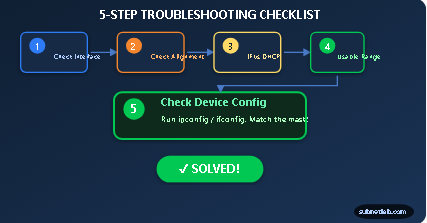
- Step 1: Are you comparing the right interface? – Stop looking at the WAN (Internet) status. Navigate to your router’s LAN Setup or DHCP Server page.
- Step 2: Check your alignment. – If you are using /23, is the third octet even? If using /22, is it divisible by 4?
- Step 3: Compare Interface vs DHCP. – Write down the router’s LAN IP (e.g., 10.0.0.1) and mask (/24). Now check the DHCP start/end range. Does the DHCP range live inside that /24 network?
- Step 4: Check the “Usable” column. – Are you accidentally including the network .0 or broadcast .255 addresses in your calculation?
- Step 5: Check the device itself. – If the router looks good, run ipconfig on your computer. Is your PC getting the right mask? If it’s static, fix the mask to match the router.
Part 4: Real-World Examples
The /23 Trap
Student: “I need 300 hosts, so I used 10.10.15.0/23. The calculator keeps changing it to 10.10.14.0!”
Fix: 15 is odd. /23 needs even boundaries. Use 10.10.14.0/23 and your range will be 10.10.14.0 to 10.10.15.255.
The Static IP Oversight
Admin: “All my Wi-Fi devices work, but my printer is offline. The router says /24, but the printer is set to /16.”
Fix: The printer thinks it’s on a massive network, while the router is strict. Change the printer’s static mask to /24 (255.255.255.0), and the connection is restored immediately.
Conclusion
Subnet calculator confusion almost always comes down to one simple misunderstanding: you are comparing a mathematical boundary (the calculator) with a physical configuration (the router).
Remember these golden rules:
- Align your IPs with the correct block sizes.
- Only compare LAN to LAN, never WAN to LAN.
- Don’t count the first and last addresses as usable.
Once you internalize these three rules, subnet calculators will stop being a source of frustration and start being the reliable maps of your network that they were designed to be.
Frequently Asked Questions
Q: Can my router really change its LAN IP on its own?
Yes. If your ISP gives you a WAN IP that overlaps with your internal network, many modern routers automatically shift to a different private range to prevent your internet from breaking entirely.
Q: Is the DHCP range the same as the subnet?
No! The subnet is the whole neighborhood. The DHCP range is just a few houses on that street that the router is allowed to rent out. You can have a /24 subnet but only hand out addresses from .100 to .200.
Q: Why do some calculators show different results for /31 networks?
/31 networks are special. They are used for point-to-point links (like between two routers). According to RFC 3021, both addresses in a /31 are usable as hosts. If one calculator treats it like a standard network and another treats it as a point-to-point link, you’ll see a difference—so be careful with edge cases.
Related Tools
Author Profile

-
Muhammad Kazim Ali – Owner & Principal Engineer at SubnetLab.com (real-world networking labs).
10+ years in routing, switching & infrastructure design. Helps students, pros & enterprises master networking via practical labs. Based in Lahore, works with ISPs, data centers & tech teams.
📞 +92 343 5201037 (WhatsApp) | ✉️ subnetlab.official@gmail.com | 🌐 subnetlab.com
Latest entries
 Network BlogAugust 25, 2026TCP/IP Model and Network Protocols Explained:TCP, UDP, ICMP, Handshakes, Flags, and Data Flow
 Network BlogAugust 11, 2026Router vs Calculator Showing Different Subnets? Why & the Fix
 Network BlogAugust 6, 2026Supernetting Explained: The Opposite of Subnetting
 Network BlogAugust 5, 2026Ping Command Explained:Your First Tool for Network Troubleshooting