
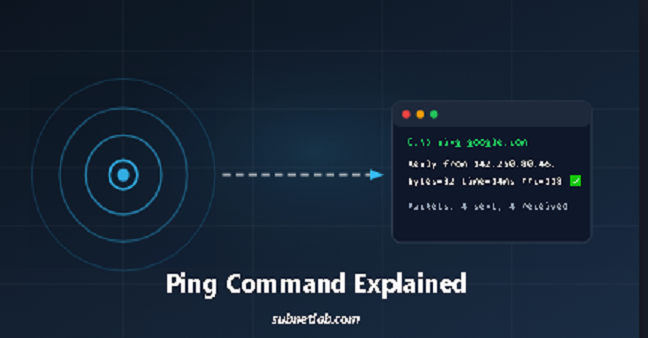
Ping is the very first command you reach for when the internet feels broken. It answers a single, clear question: Can my device talk to another device on the network? Open Command Prompt, then type ping google.com and press Enter.
142.250.80.46 is the IP address of Google, and you want to check whether your basic connection to Google Live is working or not. If ping replies with to you like 142.250.80.46 bytes=32 time 14ms , it means it’s live.
If you face a request timeout, it means your path is blocked or dropped somewhere.
Ping doesn’t test your browser, your DNS, or any website. It only checks reachability or access using tiny ICMP packets. This guide shows you how to use ping, what its flags actually do, and how to read its output to solve real problems.
I used ping in different network platforms to diagnose the fault. Master this one tool, and you’ll diagnose more issues in minutes than most people do in hours. Let’s jump in.
What Is the Ping Command, Really?
Ping is a small network tool that sends an ICMP (Internet Control Message Protocol) Echo Request to a target and waits for an Echo Reply.
Basically, ping sends a message from the source to the destination to check accessibility. If the reply comes back from the destination, it means the connection is live.
A browser relies on DNS, TCP, and TLS, but Ping uses none of these, unfortunately.
. It works on Layer 3 of the OSI model, the network layer. That’s why you can ping an IP address even when DNS is completely broken.
It tests one thing: basic reachability. It doesn’t tell you if a web server is running, if port 443 is open, or if your HTTPS certificate is valid.
Why Ping is So Important in Troubleshooting Toolkit
Every network problem has layers. Ping is the first layer you check. It answers the most fundamental question: is the destination alive on the network?
Without this knowledge, you cannot find the fault.
With it, you can quickly isolate whether the issue is local, remote, or somewhere in the middle.
I’ve used ping to diagnose a faulty switch, a misconfigured router, and even a VPN that silently lowered the MTU. In each case, the ping output told me exactly where to look next.
How Ping Works (In Simple Words)
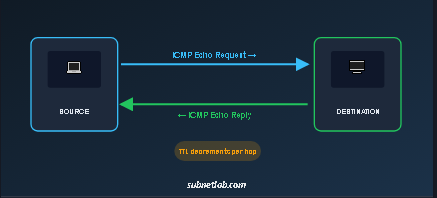
Your device crafts a small packet, with just an IP header and an ICMP message, and sends it toward the destination. Each router along the way decrements a TTL (Time to Live) value by 1.
If the TTL hits zero, the router drops the packet and sends back a “Time Exceeded” message to avoid looping into the network.
If the packet reaches its destination, the target machine replies with an ICMP Echo Reply. The round-trip time (RTT) is the total journey time, measured in milliseconds.
TTL is a safety net. Without it, packets could loop forever between misconfigured routers. A typical Windows machine sets TTL to 128; Linux often uses 64.
When you see a reply with TTL=118, that means it started at 128 and passed through 10 routers.
Ping Command Syntax: One Tool, Three Operating Systems
The syntax is simple: ping [options] destination. But Windows, Linux, and macOS each have their own dialect for options. Here’s a quick-reference table to keep you sane:
| Task | Windows | Linux / macOS |
| Ping a domain | ping google.com | ping google.com |
| Ping a raw IP | ping 8.8.8.8 | ping 8.8.8.8 |
| Set number of pings | ping -n 5 google.com | ping -c 5 google.com |
| Continuous ping | ping -t google.com | ping google.com (then Ctrl+C to stop) |
| Set packet size (bytes) | ping -l 1400 google.com | ping -s 1400 google.com |
| Don’t Fragment flag (MTU test) | ping -f -l 1472 google.com | ping -M do -s 1472 google.com |
| Timeout per reply | ping -w 2000 google.com (ms) | ping -W 2 google.com (seconds) |
| Force IPv4 / IPv6 | ping -4 google.com | ping -4 google.com (or ping6) |
I keep this table taped to my monitor. Trust me; you don’t want to mix up -n and – during a late-night outage.
Mastering Ping Flags by Real-World Job
Flags are not just random letters. Each solves a specific problem. Here’s how I group them by what you’re trying to do.
-
Basic Reachability & Control
Windows: ping -n 10 google.com
Linux/macOS: ping -c 10 google.com
Use this when you want a quick snapshot, not an endless stream. For a timeout, add w (Windows) or -W (Linux).
This tells ping, “If there’s no reply in 2 seconds, move on.” I often use it to speed up scripts that test dozens of hosts.
-
Continuous Pinging for Pattern Detection
Windows: ping -t google.com
Linux: just run ping without -c.
This is my go-to when the internet “works for a while then drops.” I let a continuous ping run in the background while browsing.
When the browser hangs, I glance at the terminal. If ping also stops, the problem is network-wide. If ping continues but the browser fails, it’s a higher-layer issue (DNS, firewall, MTU).
I once caught a faulty microwave oven that knocked out Wi-Fi every time someone made popcorn. Ping-t revealed the exact drop pattern.
-
Packet Size & MTU Black Hole Discovery
This flag is criminally underused. Many network paths have a limit on packet size (MTU). Large packets get split or dropped. Ping can test this in one shot:
Windows: ping -f -l 1472 google.com
Linux/macOS: ping -M do -s 1472 google.com
If you see “Packet needs to be fragmented, but DF set,” you’ve found an MTU mismatch. Lower the size until it succeeds.
In the Lahore office I mentioned earlier, the router’s WAN MTU had changed from 1500 to 1400 after a firmware update.
Small ICMP packets passed, but large HTTPS handshake packets were silently dropped. That single ping test saved us an hour of head-scratching.
-
IP Version Troubleshooting
Force IPv4: ping -4 google.com
Force IPv6: ping -6 google.com
If you suspect your IPv6 tunnel is broken while IPv4 works, these flags prove it instantly. ISPs sometimes roll out IPv6 with teething problems.
Forcing each version reveals which path is faulty.
-
Resolving IP to Hostname
Windows: ping -a 8.8.8.8
This performs a reverse DNS lookup. It’s handy when you see an unknown IP in your logs and want to know whose server it is. On Linux, you’d use dig -x separately.
Reading Ping Output Like a Pro
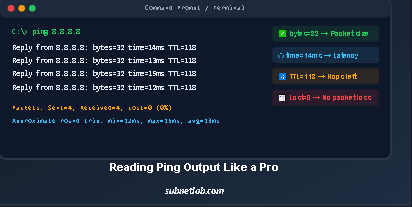
Clean Reply: Everything Is Fine
Reply from 8.8.8.8: bytes=32 time=14ms TTL=118
This tells you the packet size was 32 bytes (plus headers), the round trip took 14 milliseconds, and the remaining TTL is 118.
Latency is good for a local server and average for a cross-country link. TTL gives a clue about the target’s operating system and the number of hops.
“Request Timed Out” Not Always What You Think
This message means your device sent a request and never got a reply within the timeout window.
But it doesn’t always mean the destination is down. It could be:
- A firewall or router silently dropping ICMP traffic.
- A faulty cable causing packet loss.
- The remote host is truly unreachable.
How to distinguish? Ping another known-good host like 1.1.1.1. If that also fails, the problem is on your side.
If it works, the original target is either blocking ICMP or genuinely down.
“Destination Host Unreachable”
This message comes from a router on the path, not from the destination itself. It means, “I can’t find a route to that network.
“If you see this, the break is very close, usually your default gateway. Check your cables, switch, and router configuration.
TTL Expired in Transit
This indicates a routing loop or an extremely long path. Each router reduces TTL by 1; when it hits zero, the packet is dropped, and this message is returned.
.
High Latency and Jitter
Ping statistics at the end show min, max, and average RTT, plus standard deviation. If the average is high (say >100 ms to a nearby server) or the standard deviation is large, you have latency or jitter issues.
Jitter is the enemy of real-time voice and video. Even if average ping looks okay, inconsistent delivery reduces call quality.
Packet Loss: The Silent Killer
Look at the summary: Packets: Sent = 10, Received = 8, Lost = 2 (20% loss). Even 1-2% loss wreaks havoc on VoIP, remote desktop, and gaming.
It means a fault in your Ethernet Cable, switch, or Router. Ping always helps you.
Real-World Troubleshooting Scenarios
Scenario 1: Is My Own Machine’s Network Stack Alive?
Command: ping 127.0.0.1
This is the loopback address. If this fails, your TCP/IP stack is corrupt, or a firewall on your machine is blocking all ICMP.
Scenario 2: Can I Reach My Router?
Command: ping 192.168.1.1 (your default gateway)
Failure here means the problem is between your device and the router. Check Wi‑Fi connection.
Ethernet cable or switch. Without this hop, you can’t reach the internet.
Scenario 3: Is DNS Broken or Is the Internet Down?
Try ping google.com. If it fails, try ping 8.8.8.8. If the IP works but the domain doesn’t, your DNS resolver is the culprit.
Switch to 1.1.1.1 or 8.8.8.8 and flush your cache.
Scenario 4: Ping Works but Websites Won’t Open
This is the exact symptom from my Lahore story. Ping to IP addresses worked, but HTTPS pages timed out.
The MTU test (ping -f -l 1472) failed with a fragmentation error. Reducing the router’s WAN MTU to 1400 fixed it instantly. For a full walkthrough, read our guide on Why Ping Works But Websites Won’t Open.
Scenario 5: Intermittent Internet Finding the Pattern
Run ping -t google.com (Windows) for 30 minutes. Watch for gaps. When a gap appears, check if another wired device in the same network also loses connectivity. If yes, the issue is upstream (ISP or router).
If not, your device’s Wi‑Fi adapter or driver might be the problem. I’ve used this method to prove to an ISP that their line had micro-outages every 15 minutes of data they couldn’t ignore.
Scenario 6: Checking Path Health to a Server
Combine ping with traceroute. Start a continuous ping to the server, then run tracert (Windows) or traceroute (Linux). Note where latency spikes.
If ping shows high latency but traceroute shows the spike at a specific hop, you’ve found the bottleneck.
Scenario 7: Flood Ping for Stress Testing (Use Responsibly)
On Linux, ping -f sends packets as fast as possible. It can saturate a link and test whether your router can handle high packet rates.
Never use this on servers you don’t own; it’s considered abuse. I use it only in lab environments to test QoS policies.
Ping vs. Other Network Tools
Ping is the first stethoscope, but not the only one. Here’s when to switch tools:
| Tool | What It Tests | When to Use It |
| Ping | Layer 3 reachability (ICMP) | Always first is the host alive? |
| Traceroute / Tracert | Path discovery | When you need to see which hop is causing latency or loss |
| Pathping / MTR | Path with long-term stats | When you need detailed loss per hop over time |
| Telnet / Test-NetConnection | TCP port connectivity | When you suspect a firewall is blocking a specific port (e.g., 443) |
| nslookup / dig | DNS resolution | When pinging to IP works, but domain ping fails |
| Wireshark | Packet capture & analysis | When you need to see the actual packets for deep inspection |
Each tool has its place. Mastering ping gives you the confidence to move up the stack when needed.
Ping Command Cheat Sheet (Print and Keep)
- Check local stack: ping 127.0.0.1
- Ping router: ping 192.168.1.1
- Ping DNS server: ping 1.1.1.1
- Continuous ping (Windows): ping -t 8.8.8.8
- 5 pings only (Linux): ping -c 5 8.8.8.8
- MTU test (Windows): ping -f -l 1472 google.com
- MTU test (Linux): ping -M do -s 1472 google.com
- Force IPv4: ping -4 google.com
- Resolve hostname: ping -a 8.8.8.8 (Windows)
- Timeout 2 seconds: ping -w 2000 8.8.8.8 (Windows) / ping -W 2 8.8.8.8 (Linux)
Limitations: What Ping Cannot Do
Ping is brilliant, but it’s not magic. Many public servers block ICMP for security, so you can’t ping them even when their websites load perfectly.
Ping also can’t check if a specific service (like Apache or MySQL) is running. A server can respond to ping while its web application is crashed.
And ping measures latency, not bandwidth; a 10 ms ping doesn’t mean you can stream 4K video.
Frequently Asked Questions
How do I stop a continuous ping?
Press Ctrl+C. On Linux, you can also set a count with -c.
Why does ping show “General failure”?
Usually means your network adapter isn’t configured or has no valid IP. Check ipconfig or network settings.
Can I ping a specific port?
No, ping only uses ICMP, which has no port concept. Use telnet, nc, or Test-NetConnection to test TCP ports.
What does TTL 64 mean?
The reply likely came from a Linux/Unix system (default TTL 64) or a device that started at 128 and lost 64 hops.TTL gives a rough OS fingerprint.
Is ping a reliable speed test?
No. Ping measures latency in milliseconds, not bandwidth. Use tools like iPerf or web-based speed tests for throughput.
Final Thought
Ping is the simplest yet most honest diagnostic tool in networking. It doesn’t care about your browser’s proxy settings, your DNS configuration, or your TLS version.
It just tells you if the road exists. The next time you face a connectivity puzzle, resist the urge to restart the router.
Open a terminal. Start with ping 127.0.0.1, then your gateway, then an internet IP, then a domain. Layer by layer, you’ll uncover the truth fast, clean, and without guesswork.
Author Profile

-
Muhammad Kazim Ali – Owner & Principal Engineer at SubnetLab.com (real-world networking labs).
10+ years in routing, switching & infrastructure design. Helps students, pros & enterprises master networking via practical labs. Based in Lahore, works with ISPs, data centers & tech teams.
📞 +92 343 5201037 (WhatsApp) | ✉️ subnetlab.official@gmail.com | 🌐 subnetlab.com
Latest entries
 Network BlogAugust 25, 2026TCP/IP Model and Network Protocols Explained:TCP, UDP, ICMP, Handshakes, Flags, and Data Flow
 Network BlogAugust 11, 2026Router vs Calculator Showing Different Subnets? Why & the Fix
 Network BlogAugust 6, 2026Supernetting Explained: The Opposite of Subnetting
 Network BlogAugust 5, 2026Ping Command Explained:Your First Tool for Network Troubleshooting